What Is Image Compression? A Complete Beginner’s Guide
Learn exactly how image compression works, the difference between lossy and lossless, and why it is critical for your website speed and user experience.
In the digital world, images are strictly better than text for engagement. But they come at a cost: file size.
High-resolution photos can slow your website to a crawl, frustrating users and hurting your Google rankings.
This is where Image Compression comes in.
This guide is for bloggers, developers, marketers, and website owners who want faster websites and better SEO using image compression.
Ideal for: Bloggers, Developers, and content creators.
Expert Note: This guide is based on real-world image optimization practices used in modern web performance and SEO workflows.
Table of Contents
- What is Image Compression
- Types of Image Compression
- Why Image Compression Matters for SEO
- Browser-Based Compression Explained
- FAQs
Key Takeaways
- Compress First: Always optimize images before uploading them.
- Choose Wisely: Use JPG/WebP for photos, PNG for logos.
- Speed Matters: Smaller images directly improve Core Web Vitals.
- Format Hierarchy: WebP > JPG > PNG for web performance.
- Go Browser-Based: Securely compress files without uploading them.
What Is Image Compression?
Image compression is the process of reducing the file size of a digital image without significantly degrading its visual quality.
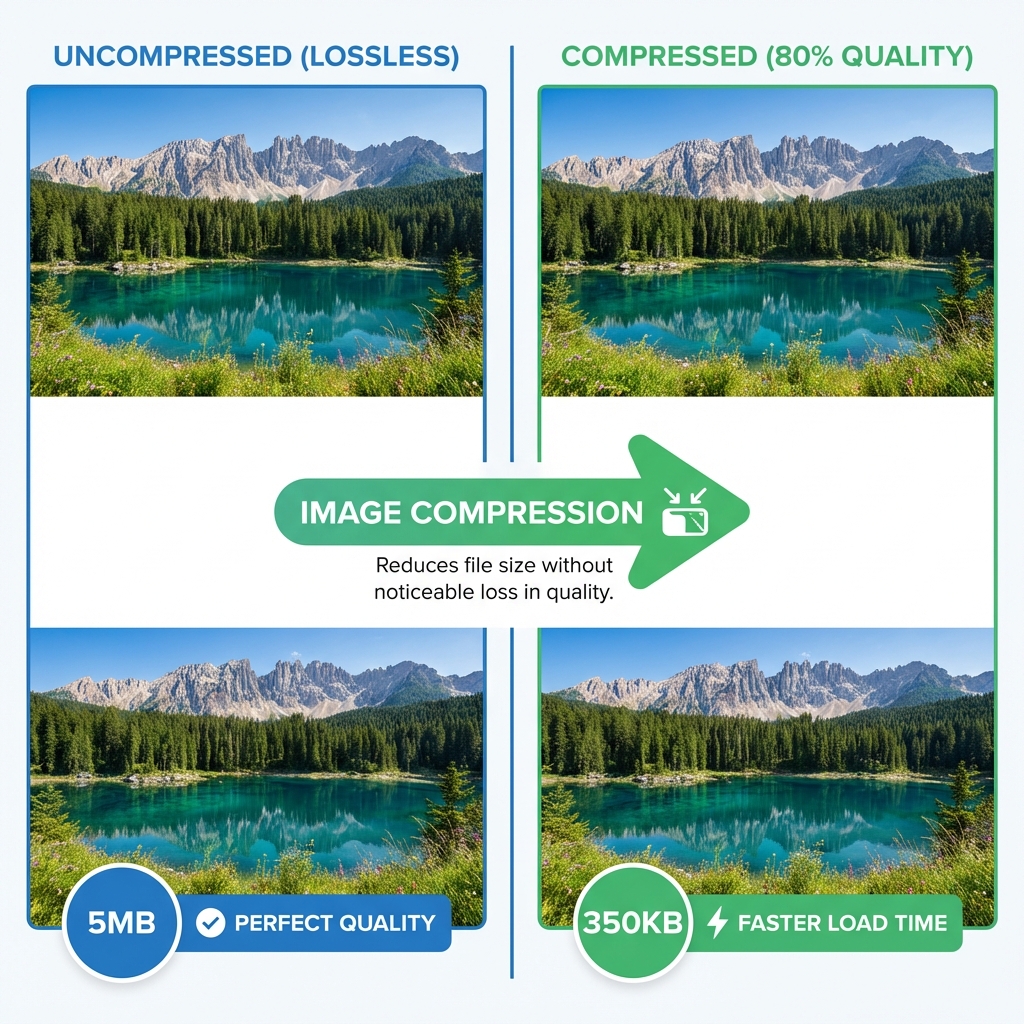
It works by removing redundant or irrelevant data from the image file.
Think of it like packing a suitcase. You can throw clothes in loosely (uncompressed), taking up tons of space.
OR, you can fold them neatly and use vacuum bags (compressed), fitting the same amount of clothes into a much smaller space.
Types of Image Compression
There are two main methods you need to understand: Lossy and Lossless.
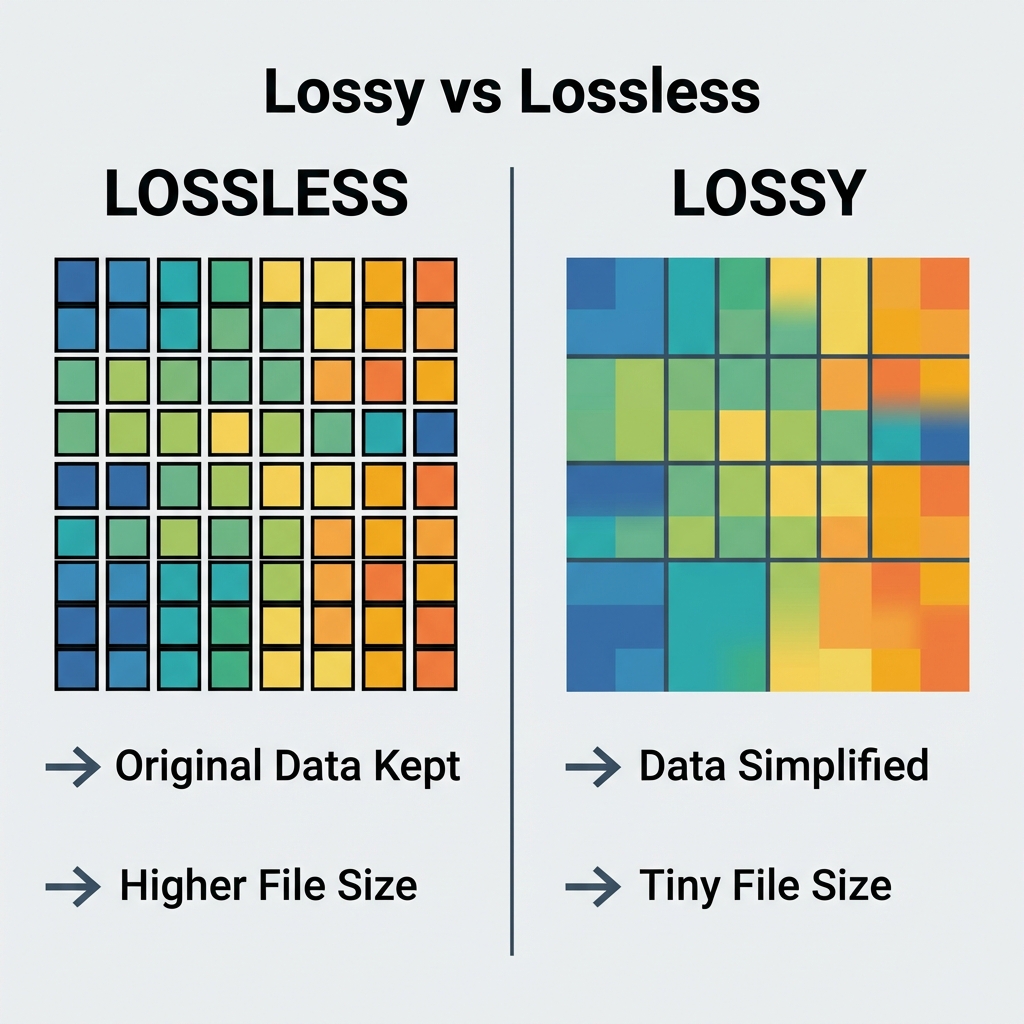
1. Lossy Compression (JPG, WebP)
"Lossy" compression aggressively reduces file size by permanently removing some data.
- How it works: The algorithm simplifies color data. For example, if a pixel is #000000 (black) and the neighbor is #000001 (almost black), it might make them both #000000.
- Best for: Photographs, complex images, and web use where speed is priority.
- Trade-off: If you compress too much, you’ll see "artifacts" or pixelation.
2. Lossless Compression (PNG, RAW)
"Lossless" compression reduces file size without losing a single pixel of information.
- How it works: It rewrites the data more efficiently. Instead of saying "Red pixel, Red pixel, Red pixel", it says "3 Red pixels".
- Best for: Logos, text-heavy images, and professional photography editing.
- Trade-off: File sizes remain relatively large compared to lossy.
Why Image Compression Matters for SEO
Page speed is a widely recognized ranking factor. Large images are often the primary cause of slow websites.
Page Speed Large images significantly slow down page load times, which can negatively affect rankings.
Core Web Vitals Google measures "Largest Contentful Paint" (LCP) as a key signal. If your main image loads slowly, it can hurt this score.
User Experience (UX) Sites that load slowly often see higher bounce rates. Mobile users are especially sensitive to slow images.
Bandwidth Costs Smaller images reduce data transfer, saving money on hosting and improving performance for users on data plans.
Browser-Based Image Compression Explained
Traditionally, you had to download bulky software like Photoshop or upload your private photos to a server to compress them.
Modern tools (like ours) use WebAssembly to process images directly in your browser.
- Privacy: Your photos never leave your device.
- Speed: No uploading/downloading time.
- Quality: You get professional-grade compression algorithms (like MozJPEG) instantly.
When Should You Compress Images?
You should compress every single image before uploading it to the web.
- Blog Posts: Compress standard JPGs to under 100KB.
- Product Photos: Ensure crisp quality but keep them fast-loading.
- Social Media: Platforms compress for you, but uploading smaller files saves you data.
Common Mistakes to Avoid
- Over-compressing: Reducing quality to 10% will make your image look like a blur. Aim for 75-85% quality.
- Wrong Format: Don't use PNG for photographs (files are huge). Use JPG or WebP. Convert them easily with our Image Converter.
- Resizing inside HTML: Don't upload a 4000px wide image and display it at 400px. Resize it first!
- Ignoring SEO: Always rename files (e.g.,
red-sneakers.jpg) before uploading, as explained in our complete Image Optimization Guide.
Frequently Asked Questions (FAQ)
Does image compression affect quality? If done correctly (using "lossy" compression at ~80% quality), the visual difference is usually imperceptible to the human eye, but the file size can drop by 70%.
Is WebP better than JPG? Yes. WebP images are typically 30% smaller than JPGs of the same quality and are supported by all modern browsers.
Should I compress images before uploading? Yes. Never rely on your CMS (like WordPress) to do the heavy lifting. Uploading a 5MB image is a waste of server resources and bandwidth.
Is browser-based compression safe? Yes. Our tool processes images locally on your device using WebAssembly. Your photos are never uploaded to any server, ensuring 100% privacy.
Try Image Compression Online
Ready to speed up your content? You don't need expensive software.
You can use our Free Image Compressor to optimize images directly in your browser without uploading files. It’s fast, private, and free.
Compress images instantly — no uploads, no quality loss.
Conclusion
Image compression is the process of minimizing file size without sacrificing quality. It is a simple but powerful optimization that improves website speed, SEO performance, and user experience across all devices.
Whether you're a developer, blogger, or marketer, compressing images before publishing is no longer optional.
Stop losing visitors to slow load times. Make compression a habit.
In most cases, the rule is simple: Compress before you publish.
Last updated: March 2025